Showing posts with label Selenium IDE. Show all posts

Friday, October 23, 2015

Create and Delete Cookies with Selenium IDE

Create Cookie

Cookies can be created in Selenium-IDE using createCookie Method.


createCookie(nameValuePair, optionsString)
    Arguments:
   nameValuePair - name and value of the cookie in a format "name=value"
   optionsString - options for the cookie. Currently supported options include 'path', 'max_age' and 'domain'. the optionsString's format is "path=/path/, max_age=60, domain=.foo.com". The order of options are irrelevant, the unit of the value of 'max_age' is second. Note that specifying a domain that isn't a subset of the current domain will usually fail.

    Create a new cookie whose path and domain are same with those of current page under test, unless you specified a path for this cookie explicitly.

Delete Cookie

Cookies can be deleted in Selenium-IDE using deleteCookie Method.


deleteCookie(name, optionsString)
    Arguments:
     name - the name of the cookie to be deleted
    optionsString - options for the cookie. Currently supported options include 'path', 'domain' and 'recurse.' The optionsString's format is "path=/path/, domain=.foo.com, recurse=true". The order of options are irrelevant. Note that specifying a domain that isn't a subset of the current domain will usually fail.

    Delete a named cookie with specified path and domain. Be careful; to delete a cookie, you need to delete it using the exact same path and domain that were used to create the cookie. If the path is wrong, or the domain is wrong, the cookie simply won't be deleted. Also note that specifying a domain that isn't a subset of the current domain will usually fail. Since there's no way to discover at runtime the original path and domain of a given cookie, we've added an option called 'recurse' to try all sub-domains of the current domain with all paths that are a subset of the current path. Beware; this option can be slow. In big-O notation, it operates in O(n*m) time, where n is the number of dots in the domain name and m is the number of slashes in the path.


Wednesday, April 18, 2012

Why & How WebDriver (Selenium) coding?


Why & How WebDriver automation?

The limitations of Selenium IDE are:
1) Selenium IDE uses only HTML language.
2) Conditional or branching statements execution like using of if, select statements is not possible.
3) Looping statements using is not possible directly in Selenium HTML language in ide.
4) Reading from external files like .txt, .xls is not possible.
5) Reading from the external databases is not possible with ide.
6) Exceptional handling is not there.
7) A neat formatted Reporting is not possible with IDE.


Selenium IDE is very useful in learning stage of Selenium as it has feature of record actions. we can export recorded test case to any of these formats.
Selenium IDE exporting formats
Download latest Selenium-server jar from here.
How to start with WebDriver ? (WebDriver + Java)
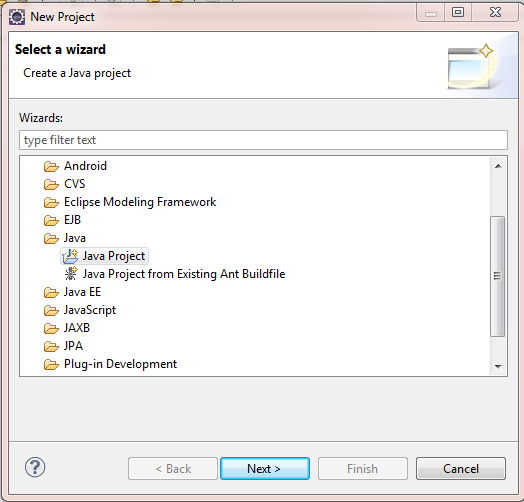
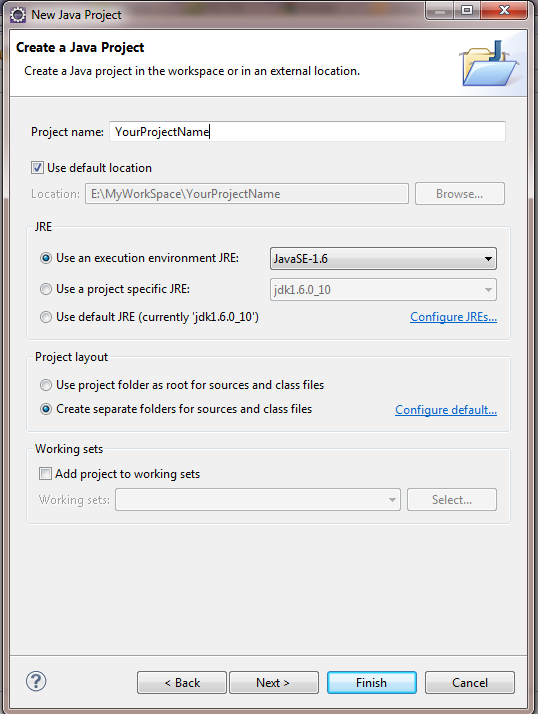
Create a Java project in eclipse
Create new Project
Select Java 
Give the Project name

Import downloaded selenium jar file in your java project.
Importing selenium jar in your project
To get above screen right click on your project
Build path > Configure Build path > Libraries (tab) > Add external Jar

Now entire setup is ready in your machine to write Selenium programs, Start writing your test cases using WebDriver classes & methods. WebDriver Java Document available here.

Example program : 

package org.openqa.selenium.example;

import org.openqa.selenium.By;
import org.openqa.selenium.WebDriver;
import org.openqa.selenium.WebElement;
import org.openqa.selenium.firefox.FirefoxDriver;
import org.openqa.selenium.support.ui.ExpectedCondition;
import org.openqa.selenium.support.ui.WebDriverWait;

public class Selenium2Example  {
    public static void main(String[] args) {
        // Create a new instance of the Firefox driver
        // Notice that the remainder of the code relies on the interface, 
        // not the implementation.
        WebDriver driver = new FirefoxDriver();

        // And now use this to visit Google
        driver.get("http://www.google.com");
        // Alternatively the same thing can be done like this
        // driver.navigate().to("http://www.google.com");

        // Find the text input element by its name
        WebElement element = driver.findElement(By.name("q"));

        // Enter something to search for
        element.sendKeys("Cheese!");

        // Now submit the form. WebDriver will find the form for us from the element
        element.submit();

        // Check the title of the page
        System.out.println("Page title is: " + driver.getTitle());
        
        // Google's search is rendered dynamically with JavaScript.
        // Wait for the page to load, timeout after 10 seconds
        (new WebDriverWait(driver, 10)).until(new ExpectedCondition<Boolean>() {
            public Boolean apply(WebDriver d) {
                return d.getTitle().toLowerCase().startsWith("cheese!");
            }
        });

        // Should see: "cheese! - Google Search"
        System.out.println("Page title is: " + driver.getTitle());
        
        //Close the browser
        driver.quit();
    }
}

Happy coding... :)